Why Excel is a Common Choice for BOQ Templates
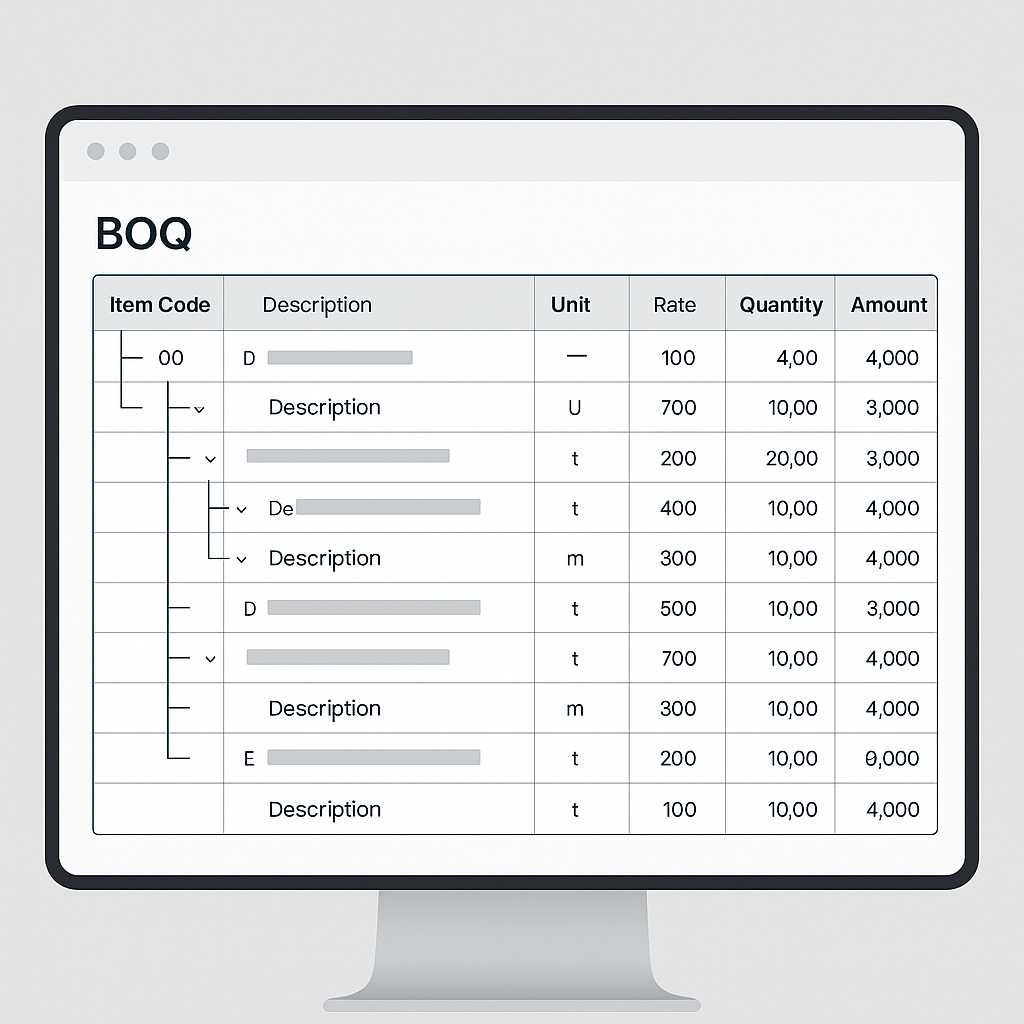
If you’re a contractor or work in construction, you’ve likely used Excel to create a Bill of Quantities (BOQ) template. Excel is widely available, cost-effective, and flexible enough to handle quantities, rates, and calculations. Setting up columns for item codes, descriptions, units, quantities, and rates is straightforward. Add formulas for totals, and you have a functional BOQ template.
For small projects with simple requirements, Excel can be a practical solution. It’s familiar to most users and doesn’t require specialized training. The ability to customize templates easily and adapt them to specific project needs is another reason Excel remains a go-to tool for many professionals.
However, as projects grow in complexity, Excel’s limitations become apparent.
Common Challenges with Excel-Based BOQs
While Excel is a powerful tool, it’s not without its challenges when used for BOQs:
1. Manual Data Entry Errors
Entering data manually increases the risk of mistakes. A single typo in quantities or rates can lead to significant discrepancies. For example, entering "1000" instead of "100" for quantity or "10.00" instead of "1.00" for a rate can cause miscalculations that escalate into budget overruns or disputes with clients. Manual entry also takes time, which can delay the preparation of BOQs for fast-moving projects.
Actionable Steps to Mitigate Errors:
- Utilize Dropdown Lists: Use dropdown menus for repetitive inputs such as units (e.g., cubic meters, kilograms). This ensures uniformity and reduces the likelihood of typos.
- Leverage Conditional Formatting: Configure conditional formatting to highlight outliers or unexpected values. For instance, flag quantities above a certain threshold or rates below a market-acceptable minimum.
- Enable Input Restrictions: Use Excel’s Data Validation feature to limit inputs in specific cells. For example, restrict the "Rate per Unit" column to only accept positive numbers.
- Automate Checks: Use built-in error-checking tools like the "Error Checking" feature under the "Formulas" tab to identify inconsistencies in the workbook.
2. Formula Errors
Excel formulas provide immense flexibility, but they’re also prone to breakage. A formula can be accidentally deleted, overwritten, or misconfigured, leading to inaccurate results. The lack of built-in error-checking mechanisms for interconnected formulas can make it hard to identify errors until it’s too late.
Actionable Steps to Secure Formulas:
- Use Absolute References: When copying or dragging formulas, use absolute references (e.g.,
$A$1) where necessary. This prevents unintentional changes to referenced cells. - Protect Formula Cells: Lock formula cells and enable sheet protection to avoid accidental edits. To do this:
- Select the formula cells.
- Right-click and go to Format Cells → Protection → Check "Locked."
- Protect the sheet with a password.
- Audit Formulas: Use Excel’s built-in formula auditing tools (under the "Formulas" tab) to trace precedents and dependents, ensuring all calculations align correctly.
- Create Backup Versions: Regularly save separate versions of your BOQ file to ensure you have a fallback if formulas break.
3. Difficulty Handling Updates
Construction projects are dynamic, with frequent changes in scope, quantities, and rates. Updating Excel templates can be cumbersome, especially when multiple people are involved. Manual updates increase the risk of introducing errors, while ensuring consistency across all updates is a logistical challenge.
Actionable Steps for Easier Updates:
- Leverage Structured Tables: Convert your data into an Excel table. Tables automatically expand when you add rows, and formulas adjust dynamically.
- Maintain a Change Log: Create a separate tab in your workbook to document all changes. Include details such as the date, person responsible, and the nature of the update (e.g., adjusted rates or quantities).
- Centralize Inputs: Store frequently updated inputs, such as tax rates or material costs, in a dedicated sheet. Reference these values in your formulas to make updates easier.
- Use Named Ranges: Assign names to key cells or ranges, like "TaxRate" or "MaterialCost." This makes it easy to update values and ensures formulas remain consistent throughout the workbook.
4. Lack of Real-Time Collaboration
Excel files are often shared via email or uploaded to shared drives. This approach can lead to version control issues, where team members unknowingly work on outdated files or introduce conflicting changes. For large teams, this can quickly become chaotic.
Actionable Steps for Collaboration:
- Use Cloud-Based Platforms: Switch to tools like Google Sheets or Microsoft Excel Online. These platforms support real-time collaboration, allowing multiple users to view and edit the same file simultaneously.
- Establish a "Single Source of Truth": Designate a central location for storing the master BOQ file, such as a secure cloud folder. Communicate this to all team members to avoid duplication.
- Track Changes: Enable the "Track Changes" feature in Excel to monitor edits made by collaborators.
- Define Roles: Clearly assign roles to team members (e.g., one person responsible for rates, another for quantities) to minimize overlapping edits.
5. Compliance Challenges
Managing GST, TDS, and other statutory requirements in Excel requires constant manual adjustments. Without automation or validation, it’s easy to miss statutory updates or make calculation errors, potentially leading to penalties or disputes during audits.
Actionable Steps to Simplify Compliance:
- Automate Tax Calculations: Create separate columns for tax rates and use formulas to calculate GST, TDS, or other statutory amounts automatically. For example, if the GST rate is 18%, use a formula like
=Quantity * Rate * 0.18. - Reference Tax Rates Centrally: Store tax rates in a dedicated sheet or key cell. Link all tax formulas to this source so updates are applied universally.
- Stay Updated: Periodically review and update the tax rates and compliance rules in your template as per government regulations.
- Use Templates: Many government websites provide downloadable templates for specific compliance requirements. Use these as a reference for accuracy.
How to Create a BOQ Template in Excel
Creating a BOQ template in Excel involves the following steps:
1. Set Up the Columns
Determine the essential data points for your BOQ and create columns for:
- Item Code: Unique identifier for each item.
- Description: Detailed description of the work or material.
- Unit of Measurement: Specify units such as cubic meters (m³), kilograms (kg), or numbers (no.).
- Quantity: The amount of work or material required.
- Rate per Unit: Cost per unit of measurement.
- Total Amount: Calculated as
Quantity × Rate.
2. Add Formulas
Use Excel’s built-in formulas to automate calculations:
- Total Amount: Use formulas like
=B2*C2(adjusting cell references as needed). - Grand Total: Use the
SUMfunction to calculate the overall project cost:=SUM(E2:E50). - Tax Amounts: For GST or similar taxes, add a formula like
=E2*TaxRate.
3. Format the Sheet
- Apply bold headers and consistent formatting for better readability.
- Use borders to separate data sections.
- Format currency columns to display two decimal places for clarity.
4. Include Notes or Instructions
Add a dedicated section for guidelines on how to use the template. Include:
- Definitions of key terms (e.g., "Unit of Measurement").
- Instructions for updating rates or quantities.
- Project-specific notes or reminders.
5. Test the Template
Before using the template for an actual project, test it with sample data. Confirm that all formulas and validations work as intended. Adjust formatting or features as needed to improve usability.
Best Practices for Using Excel BOQ Templates
To minimize errors and improve efficiency, follow these best practices:
1. Use Data Validation
- Restrict inputs to valid ranges (e.g., positive numbers for rates).
- Create dropdown lists for standardized entries like units of measurement.
2. Protect the Sheet
Prevent accidental formula changes by locking cells that contain calculations.
3. Maintain Version Control
- Use clear version names (e.g.,
BOQ_ProjectName_v1.xlsx) to avoid confusion. - Consider cloud storage with version history to track changes.
4. Back Up Regularly
- Set up automatic backups using cloud services like Google Drive or OneDrive.
- Manually back up the file to external storage at key milestones.
5. Periodic Review and Audit
- Audit templates periodically to identify and fix errors.
- Test formulas and validate data before starting new projects.
When to Consider Specialized Tools
While Excel can handle basic BOQs, specialized construction management tools offer advanced features that Excel cannot. These tools may include:
| Feature | Excel | Specialized Tools |
|---|---|---|
| Structured BOQ Import | Manual Entry | Automated Import |
| Real-Time Collaboration | Limited | Fully Supported |
| Compliance Automation | Manual Adjustments | Built-In Compliance |
| Progress Tracking | Manual Updates | Dynamic Updates |
Key Considerations:
- Small Projects: For projects with fewer than 20 line items, Excel may suffice.
- Large Projects: For larger projects with complex billing stages or frequent updates, tools like Procore or Buildertrend can save time and reduce errors.
Conclusion
Creating a BOQ template in Excel is a practical starting point for contractors, especially for small projects. However, as project complexity increases, it’s essential to evaluate whether Excel can meet your needs or if specialized tools would offer better efficiency and accuracy. By following best practices, testing your templates, and staying vigilant about potential pitfalls, you can make the most of Excel while minimizing risks.
Learn more at EstimateNext